

One team, different jobs
Loyalty program user roles, so each person sees only their work
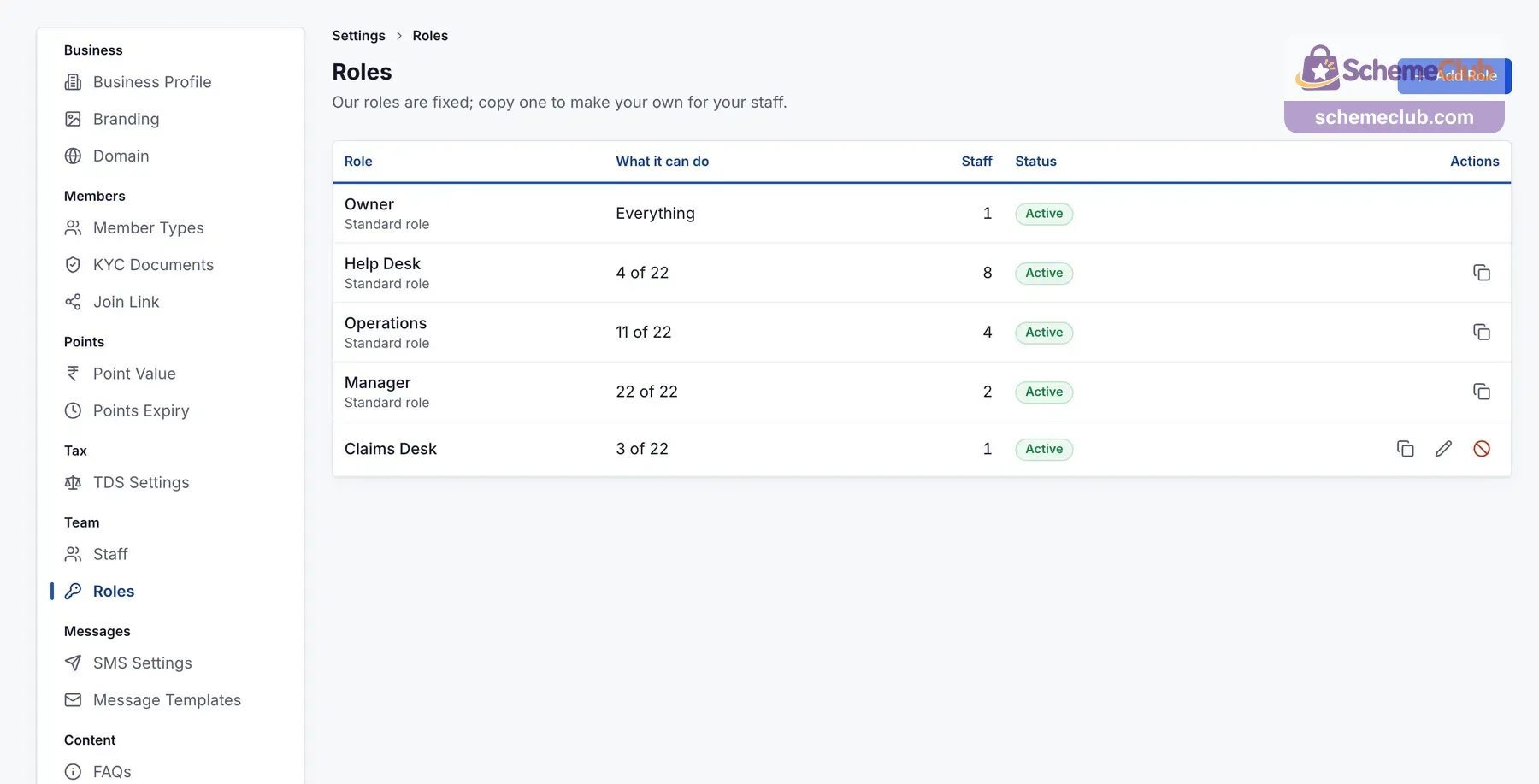
Loyalty program user roles for your staff
Ready roles and your own roles, with what each one can do.
How loyalty program user roles work
Each person on your team gets one role. A role is a set of permissions. It decides which pages they see and what they can do there. Staff Roles is part of every SchemeClub program.
Some jobs stay with the owner alone: billing, settings, staff, and support requests to us.
Ready roles in SchemeClub
These roles are the same for every business. You can't change or delete them.
- Owner: everything. This role is for the owner only
- Help Desk: see members, scans and points, and answer help requests. New staff start with this role
- Operations: Help Desk work, and also daily work such as approving members, checking KYC and handling gift requests. With bill claims or purchase entry switched on, those too
- Manager: every permission that the owner can give to staff
- Salesman: only with Field Team. Sees members in their own cities
Make your own user roles
If a ready role does not fit, copy it and change the copy, or add a new role. Give it a name and tick at least one permission. For example, you can make a role only for checking claims.
Big jobs have their own permission, such as approving members, reversing a scan, changing points by hand, paying cash, or downloading the member list. Permissions for an extra feature show only when it is switched on.
When you change a role, everyone who has it gets the change. You can turn off a role that you made. You can delete it only when it is off and nobody has it.
Add your staff
On the Staff page, the owner adds a person with their name, mobile number and role.
- A new person gets an SMS with your sign-in link, and sets a PIN the first time
- A change of role counts from their next action
- When someone leaves, disable them. Their access stops, and their name stays on the work that they did
- A person who is your member can't also be your staff, so nobody gives themselves points
- Your program may have a limit on team logins
Features that work with Staff Roles
To make a role, read the help guide: Roles.
SchemeClub works for every trade. See all businesses.
Frequently asked questions
Loyalty program user roles: your questions
About your team.
They are sets of permissions for the people who run it. In SchemeClub each person on your team has one role.
No. Only the owner can add staff and change roles.
No. Each person has one role. To give more permissions, make a role that holds all of them.
No. You disable the person. Their access stops, and their past work still shows their name.
Yes. Copy a ready role or add a new one, and tick the permissions that you want.
See what each role can open
In a free demo, we sign in with two roles and show how the screens differ.
From the blog


