

Your numbers in one place
Loyalty program reports that you can download to Excel
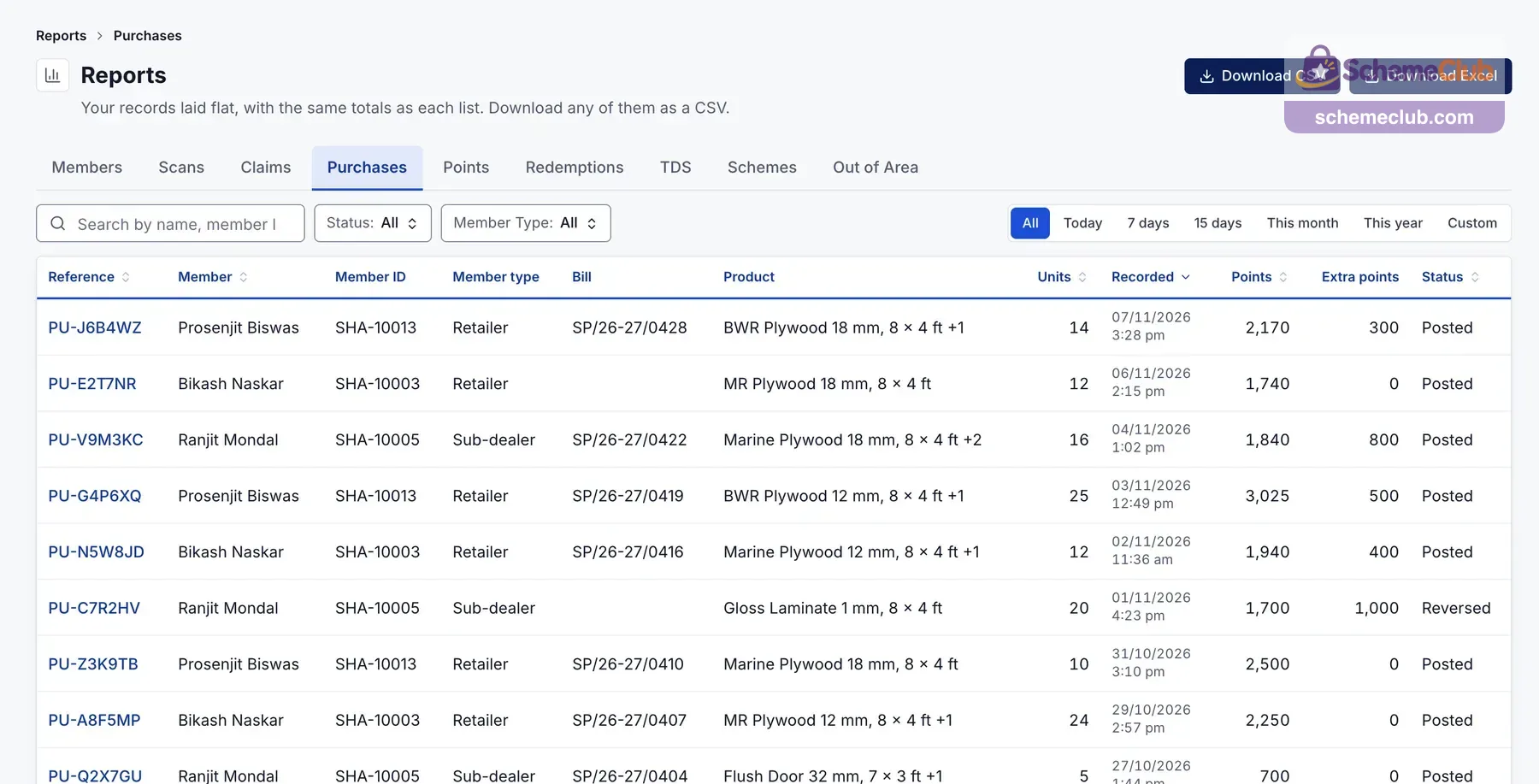
Loyalty program reports for every area
Filter a report and download it as CSV or Excel.
One page of loyalty program reports
Reports is part of every SchemeClub program. All reports are on one page, with one tab for each area. A report shows the same records and totals as the list it comes from, for the same search and filters.
- Members, Scans, Points, Redemptions (gift requests) and TDS
- Claims, Purchases, Cash Payouts and Schemes, when those features are on
- Out of Area
Search, filter and sort
On most tabs you can search, and filter by status, member type and dates. Click a column to sort. The totals on top are for all the rows that match, not only for the page you see. The TDS report works by financial year and quarter.
Download to Excel or CSV
Each tab has Download CSV and Download Excel. The file holds every row that matches your search and filters, not only one page. In Excel, points and rupees come as numbers and dates as dates, so you can add them up. Reports are downloaded when you need them; they are not sent by email on a timer.
The Out of Area report
You can name the states or cities where a batch of QR codes should be used. A scan by a member from another place still earns points. The Out of Area report lists such scans, by batch, city and member. It can help you see goods moving into another area.
It uses the city saved on the member's record. It does not read the phone's location. Check the facts before you act.
Who can see which report
A team member needs permission to open Reports, and also permission for the part a tab shows. The Salesman role does not open Reports. Downloading the member list, which has mobile numbers, needs one more permission. TDS reports show PAN with only its last 5 characters.
Features that work with Reports
For each step with the screen, read the help guide: Reports.
SchemeClub works for every trade. See all businesses.
Frequently asked questions
Loyalty program reports: your questions
About reading and downloading.
They are lists and totals of what happened in your program, such as who joined, what was scanned or sold, and which points were given and used.
Yes. Every tab can be downloaded as an Excel file or a CSV file.
No. It compares the city on the member's record with the areas you named for the batch.
No. The Salesman role does not open Reports. It sees only the members in its own areas.
No. You open the Reports page and download what you need.
See your program in numbers
In a free demo, we open each report and download one to Excel.
From the blog


